Unlocking Windows 11's Hidden Potential: 20 Powerful Features

1. Snap Layouts

Snap Layouts let you easily organize open windows into various grid-based layouts, enhancing your productivity.
Steps to Enable:
- Hover over the maximize button in any open window.
- Select your preferred layout from the grid options that appear.
- Snap your windows into the selected layout and start multitasking efficiently.
2. Virtual Desktops

Create and switch between multiple desktops to separate work, gaming, or personal tasks efficiently.
Steps to Enable:
- Press Win + Tab to open the Task View.
- Click on **New Desktop** at the top of the screen to create a new virtual desktop.
- Switch between desktops by clicking on them in the Task View or using Win + Ctrl + Left/Right Arrow.
3. Focus Assist
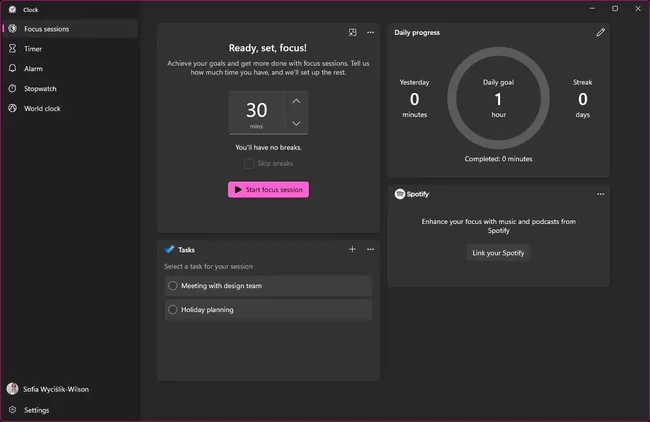
Block unnecessary notifications and distractions to maintain a distraction-free work environment.
Steps to Enable:
- Go to **Settings** → **System** → **Focus Assist**.
- Choose between **Off**, **Priority Only**, or **Alarms Only** based on your needs.
- Customize priority notifications under the **Priority Only** option.
4. Windows Sandbox

A secure and temporary desktop environment for safely running untrusted apps and files.
Steps to Enable:
- Go to **Control Panel** → **Programs** → **Turn Windows features on or off**.
- Check **Windows Sandbox** and click **OK**.
- Restart your PC, and you’ll see Windows Sandbox as an app in the Start Menu.
5. Widgets

Stay updated with personalized widgets for weather, calendar, news, and more directly from your desktop.
Steps to Enable:
- Click on the **Widgets** icon on the taskbar or press **Win + W**.
- Customize your widgets from the widgets board by clicking the **three-dot menu** on any widget.
- Add or remove widgets based on your preference.
6. Microsoft Teams Integration

Quickly connect with friends, family, and colleagues right from your taskbar using Microsoft Teams.
Steps to Enable:
- Click on the **Microsoft Teams** icon on the taskbar.
- Sign in with your Microsoft account.
- Start chatting, calling, or video conferencing directly from your taskbar.
7. Enhanced Snap Groups
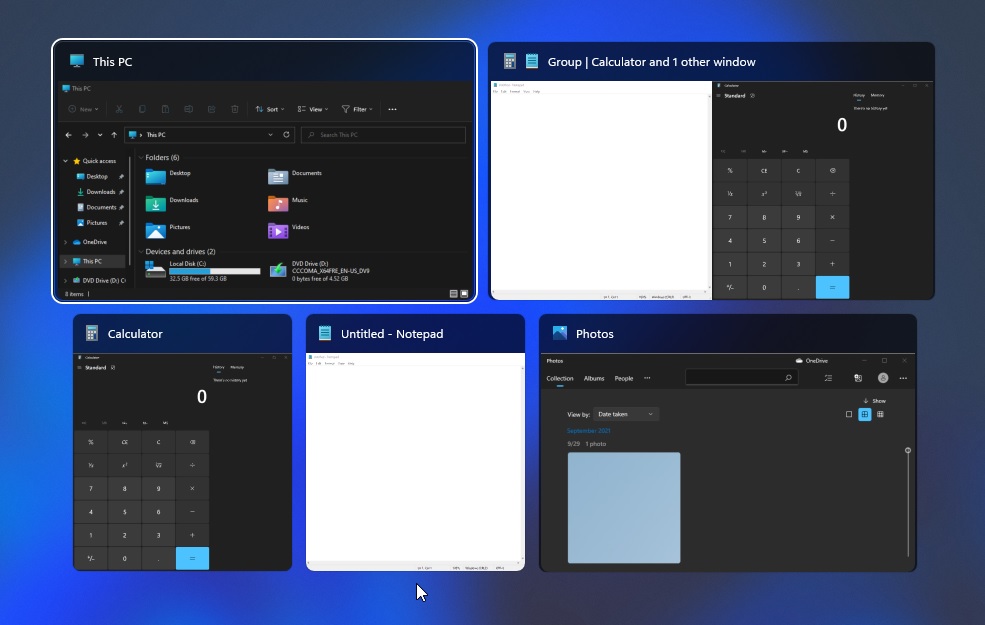
Windows remembers your snap layouts across sessions, even when you plug/unplug a monitor.
Steps to Enable:
- Snap a few windows into a layout.
- Once you disconnect or reconnect a monitor, your snap layout will be remembered, making it easy to re-align windows in the same configuration.
8. New File Explorer

Redesigned with a modern UI and enhanced navigation for faster file access and organization.
Steps to Enable:
- Open **File Explorer** from the taskbar or Start Menu.
- Navigate using the streamlined interface with options like **Quick Access** and **Home** for easy navigation.
9. DirectStorage
Improves game load times and performance by allowing games to load assets directly from SSD to GPU.
Steps to Enable:
- Ensure your system meets the requirements: NVMe SSD and a DirectStorage-enabled GPU.
- Install a game that supports DirectStorage.
- DirectStorage will be automatically enabled when launching compatible games.
10. Auto HDR

Enhance the visuals of older games with High Dynamic Range (HDR) even if they weren't designed for it.
Steps to Enable:
- Go to **Settings** → **System** → **Display**.
- Under **HDR**, enable **Auto HDR**.
- Launch any compatible game, and it will automatically apply HDR effects.
Comments
Post a Comment